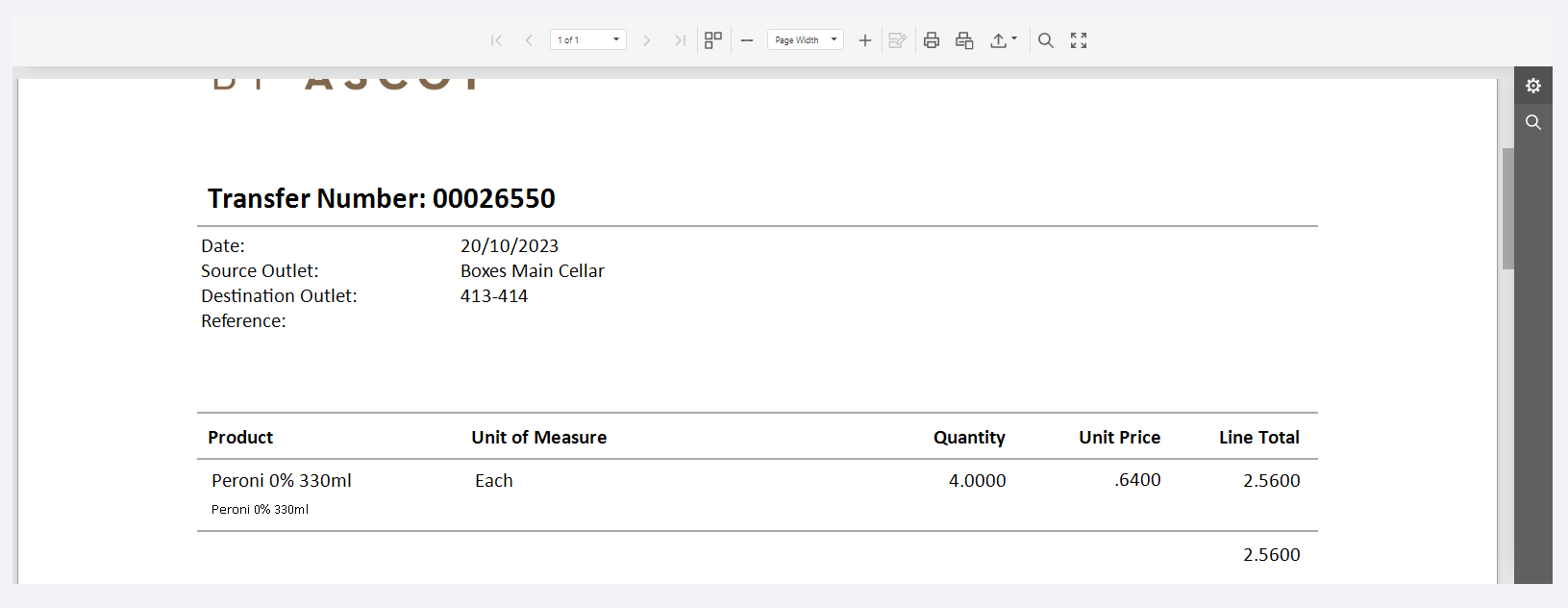
¶ Enterprise (BOH)
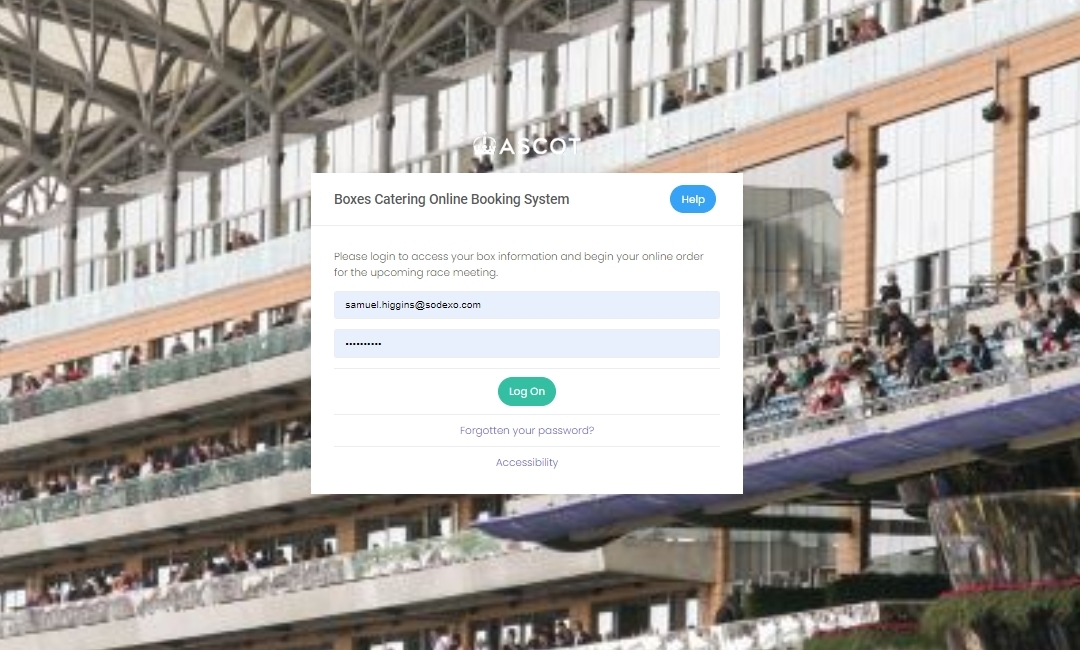
- URL - https://admin.kappture.co.uk/ascot/MemberAccount/LogOn
- Username & Password - Speak with Sam or Lee
¶ Verifying Opening & Closing Stock Counts
-
1: Visit Stock Managment : https://admin.kappture.co.uk/ascot/StockMovement/MovementStatus -
2: All opening & closing stock counts will be displayed when submitted

3: Select a verification to display the submitted results

4: Price Band : APSSP
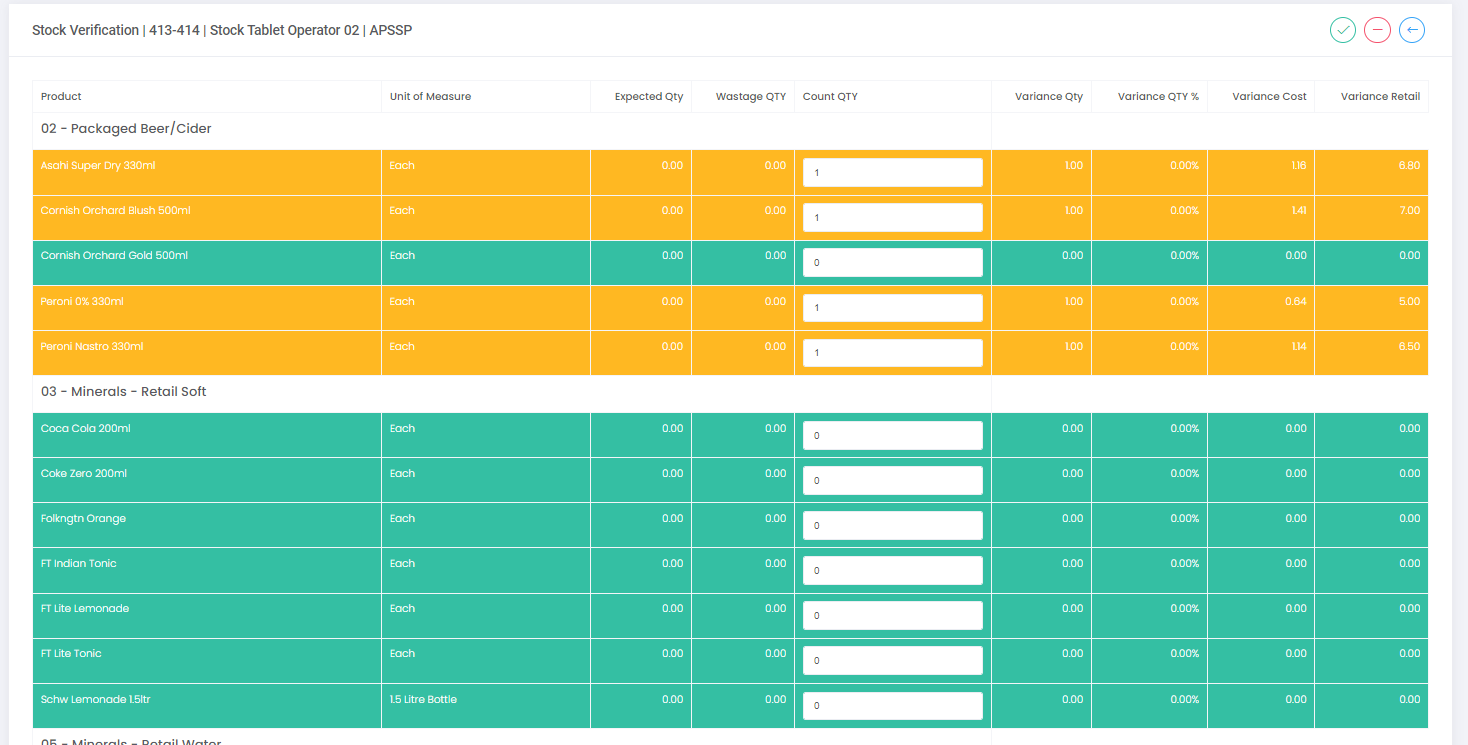
4: The submitted results from the opening / closing stock count will be displayed5: Review the results and "Accsept"(Tick) or "Reject"(Minus) them
¶ Outlet to Outlet Requisitions
Only products that have been transfered previously will be availible to requisition, if the product is not availible you must complete a transfer.
- Stock - Stock Movements - Requisition - Outlet to Outlet Requisition - Menu Link
- URL - https://admin.kappture.co.uk/ascot/StockMovement/RequisitionOutletIndex/

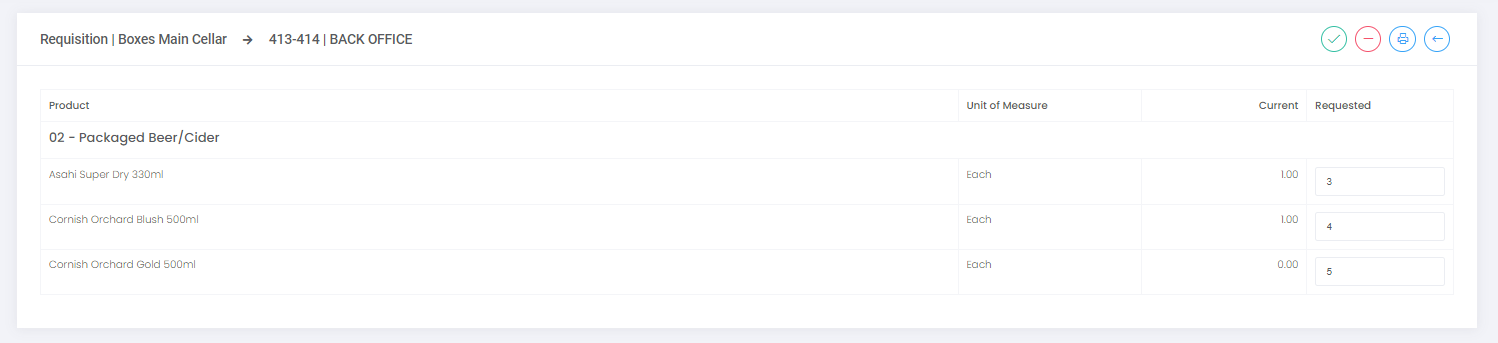
1: Source Outlet : Boxes Main Cellar2: Destination Outlet : Outlet Name3: Select the "Plus" button to continue
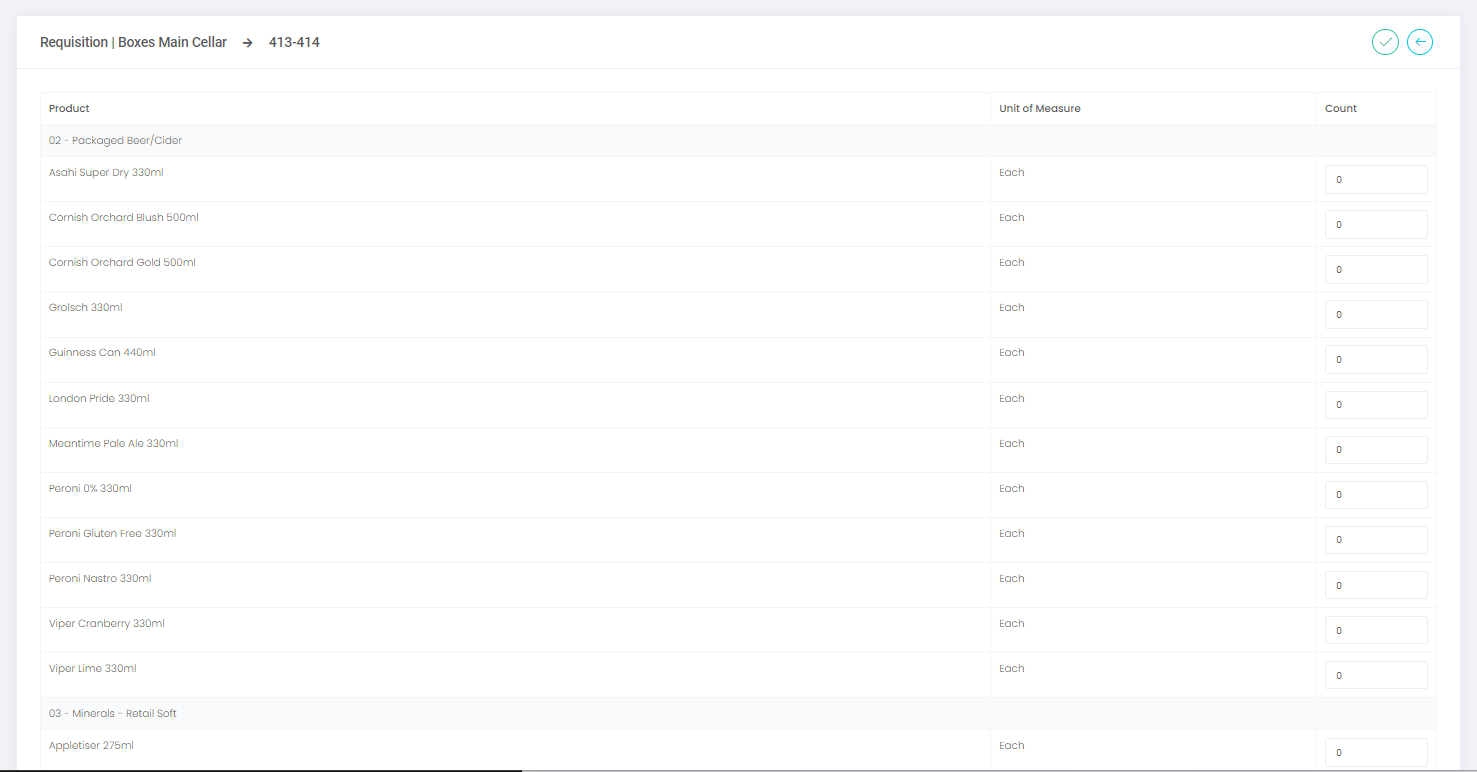
4: All products that can be requisitioned to the unit will be displayed, input the required amount next to each product and select the "Tick" button to continue5: The site will return you to the requisition terminal page
Once submitted, you must now accept the requisition on the "Stock Movements Page" for it to be authorised
.png)
6: Select the requisition and approve it via the "Tick" button
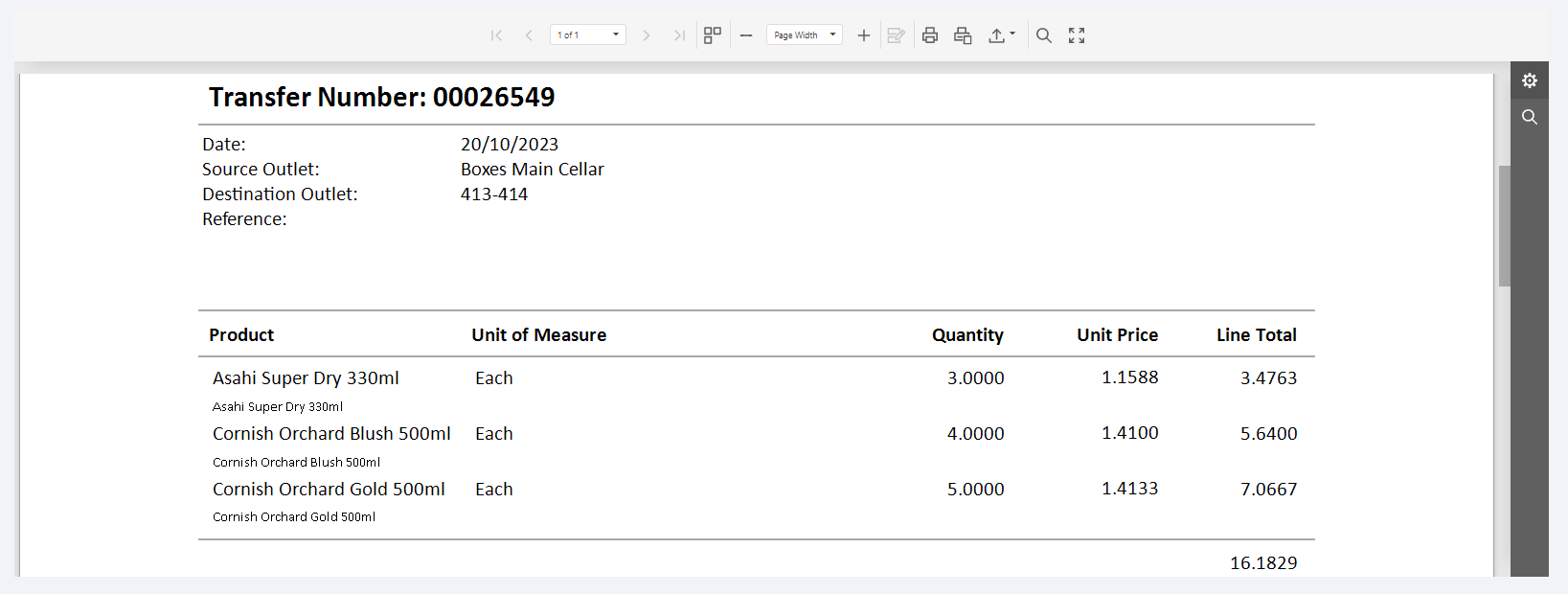
7: A requisition report will be displayed
¶ Transfer A Unavailible Product
-
Stock - Stock Movements - Transfer - Transfer - Menu Link
-
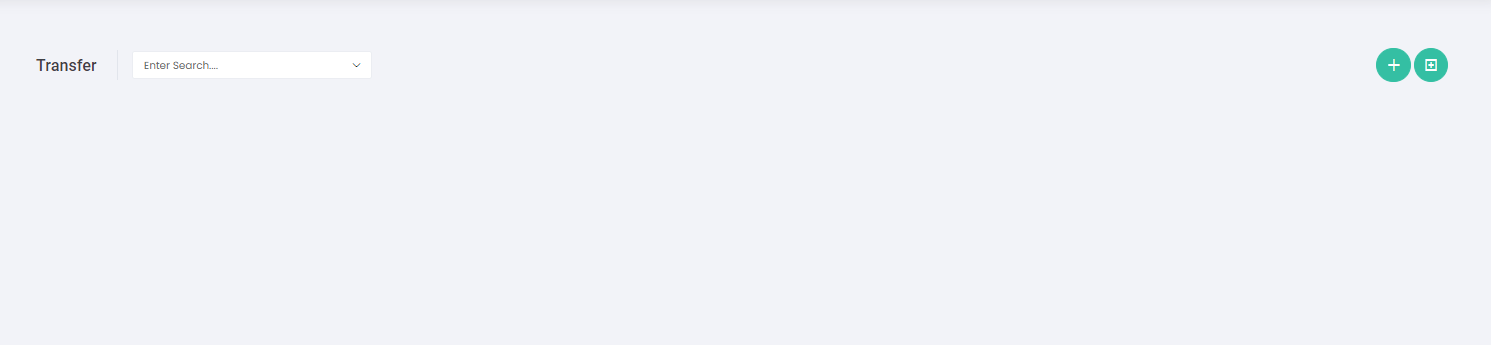
1: Select the green "Plus" button on the right side
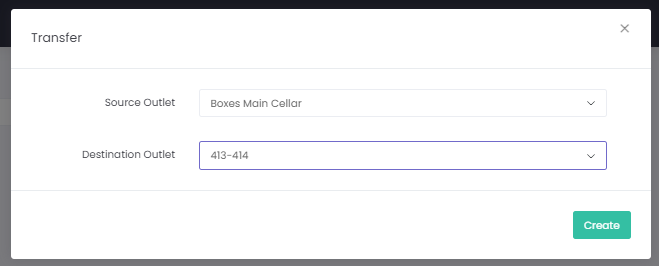
2: Source Outlet : Boxes Main Cellar2: Destination Outlet : Outlet Name
3: Select the green "Plus" button on the bottom to add a product to the transfer3: Search for the product and select the correct type3: Enter the required quanity3: Select the green "Plus" button on the right side to submit the transfer
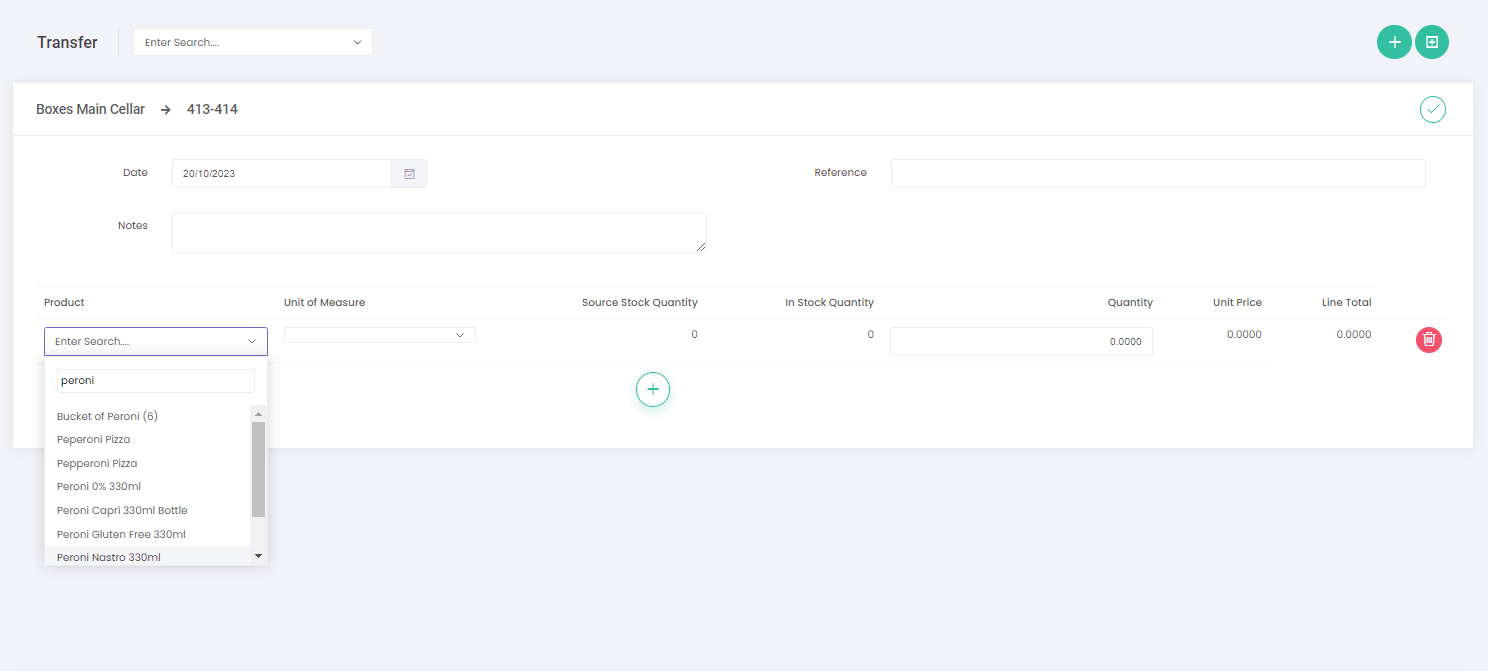
4: Once submitted a transfer report will generate