¶ Getting Ready
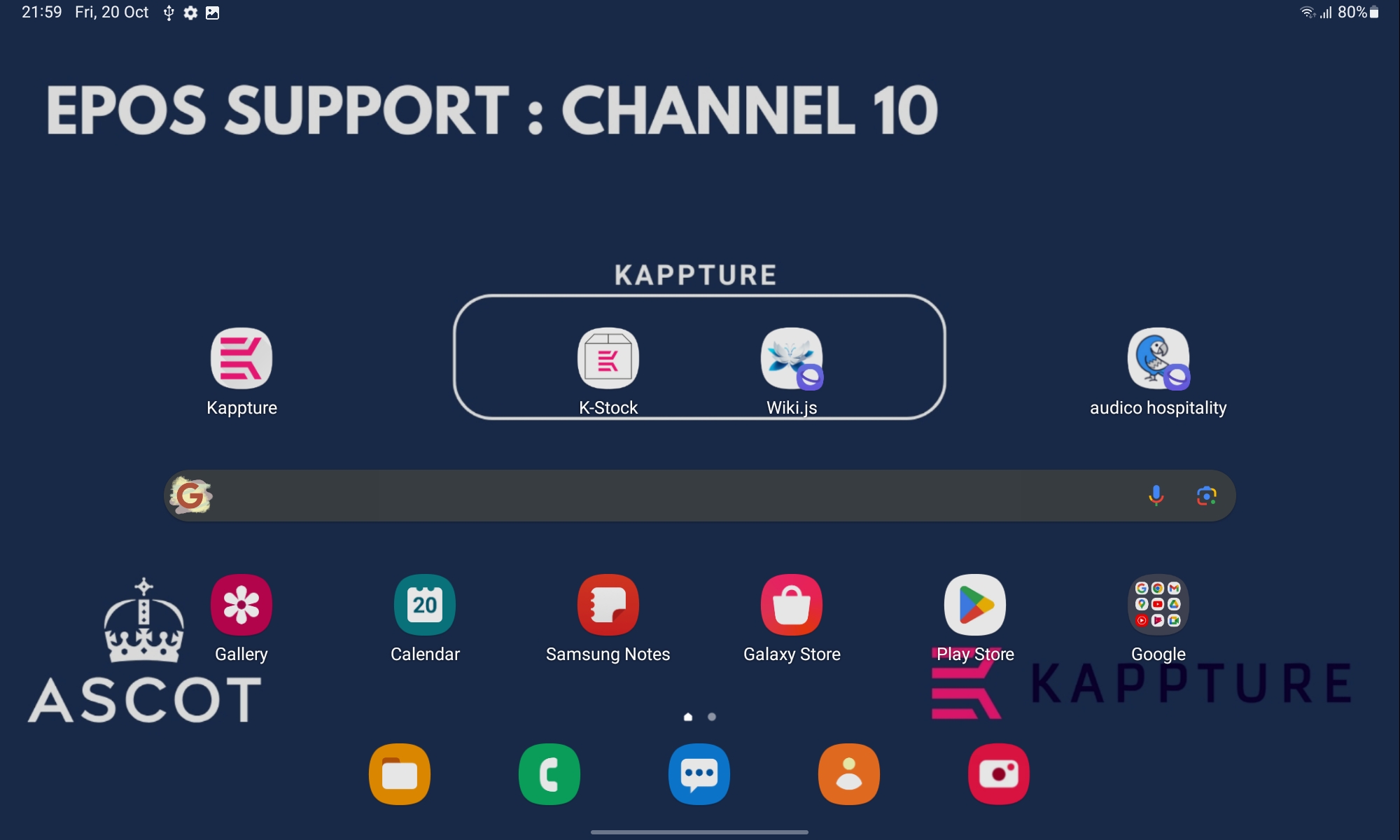
- K-Stock - Located on the Tablet Homescreen
- Wiki.js - Shortcut link to this website
¶ Launching the App
1: Select the K-Stock Application on the tablet homescreen inside the KAPPTURE box

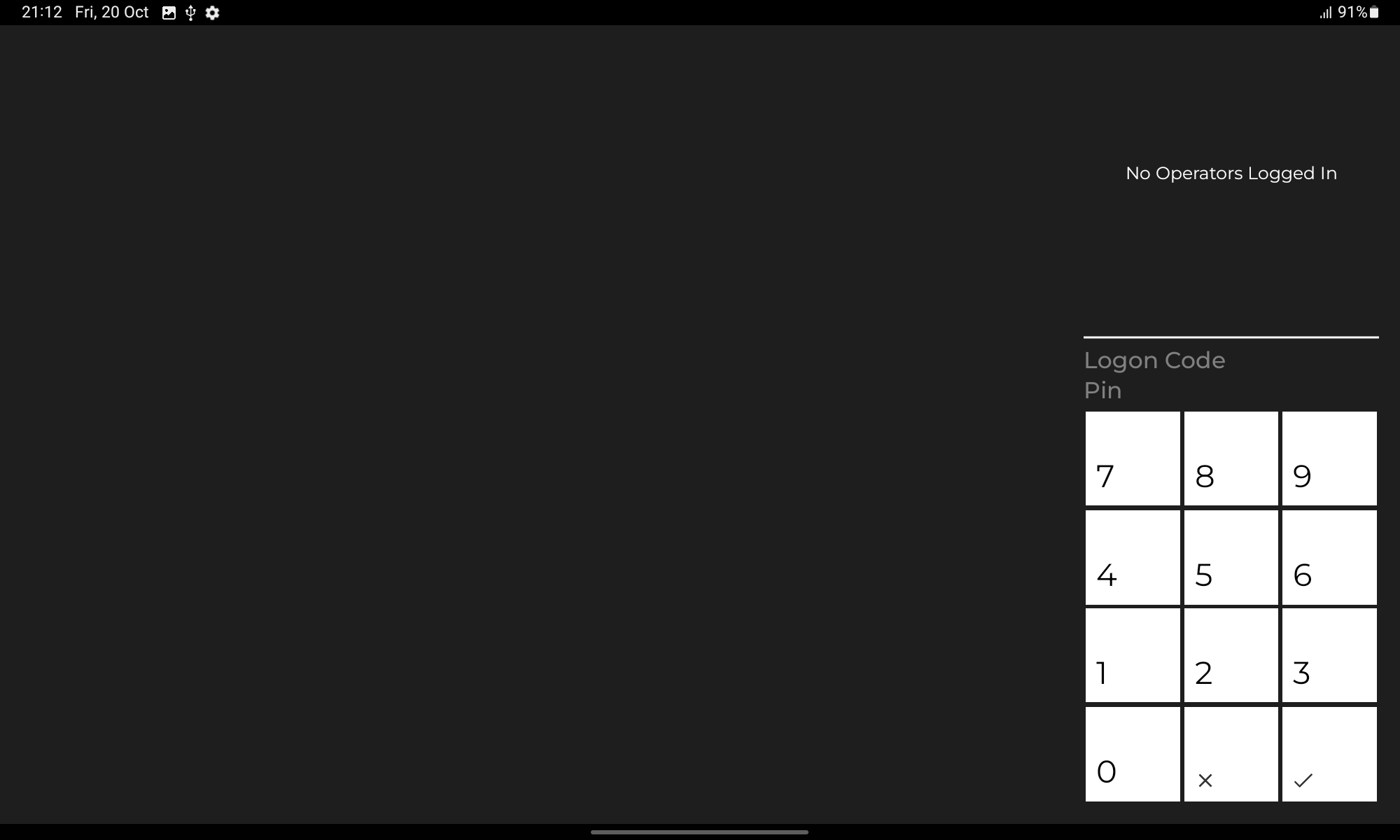
2: Login using the operator ID on top of the tablet, there is no PIN. Press the green tick twice
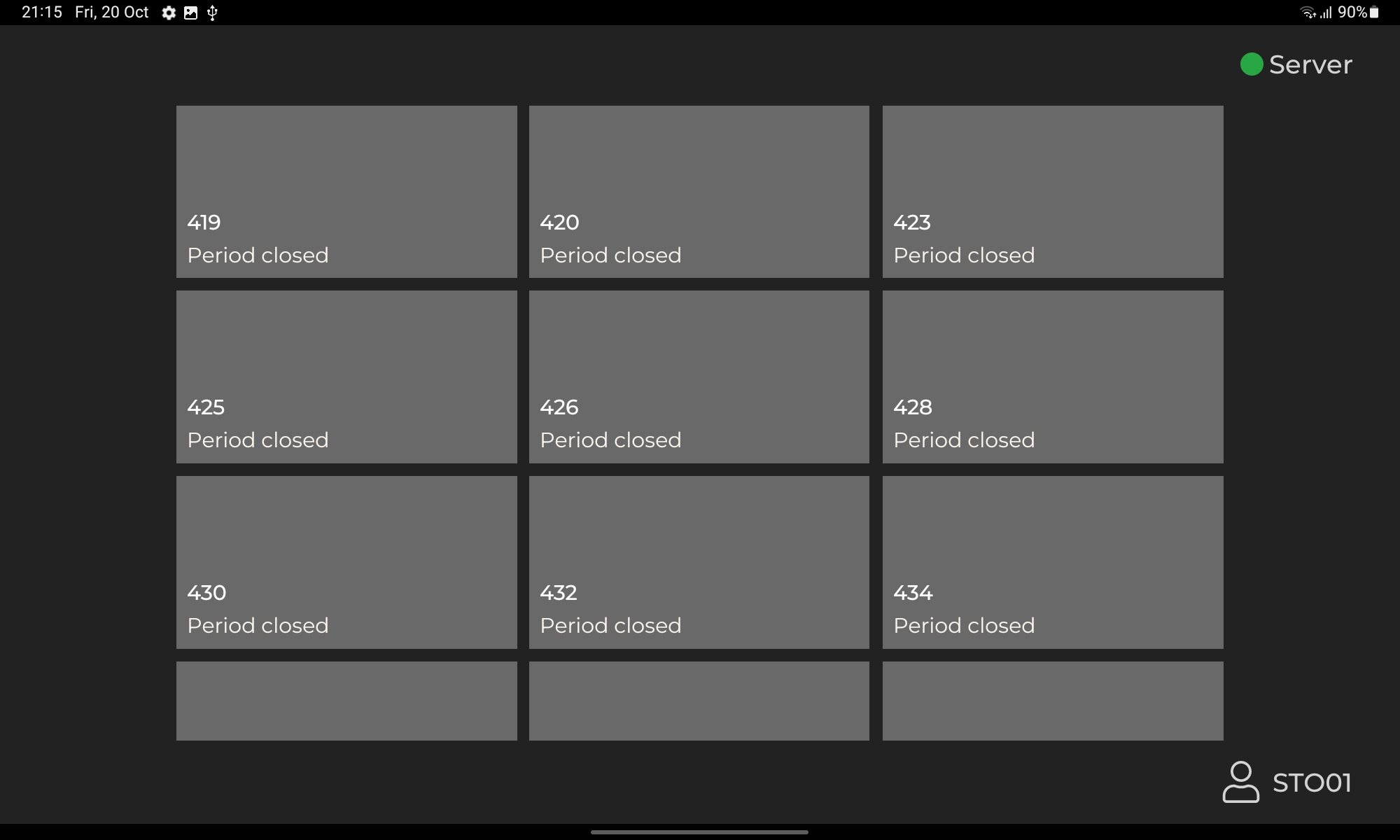
3: The stock dashboard will be displayed, all units open for operation today will be displayed
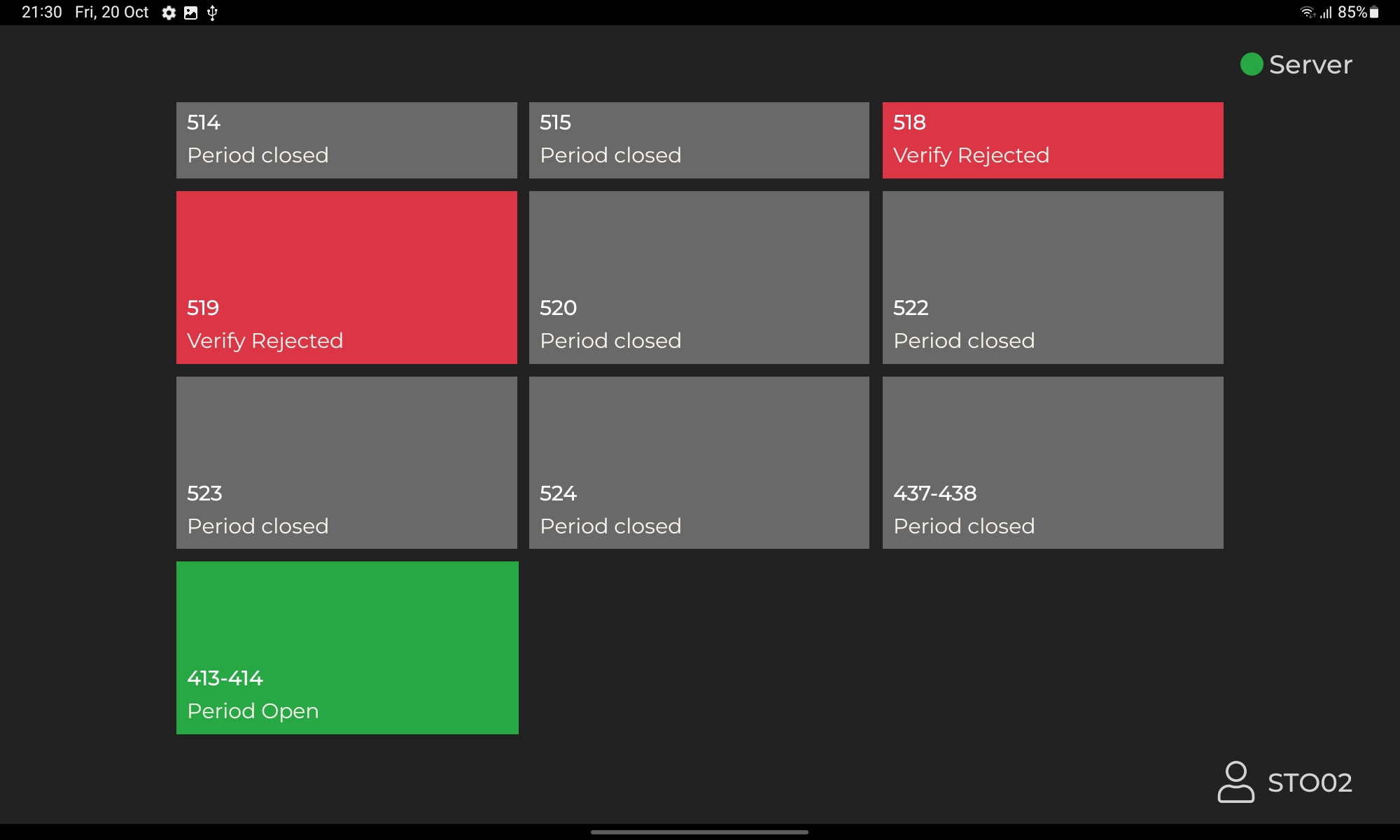
Types of Stock verificaiton
- PERIOD CLOSED - Stock Period has not been opened or has been closed
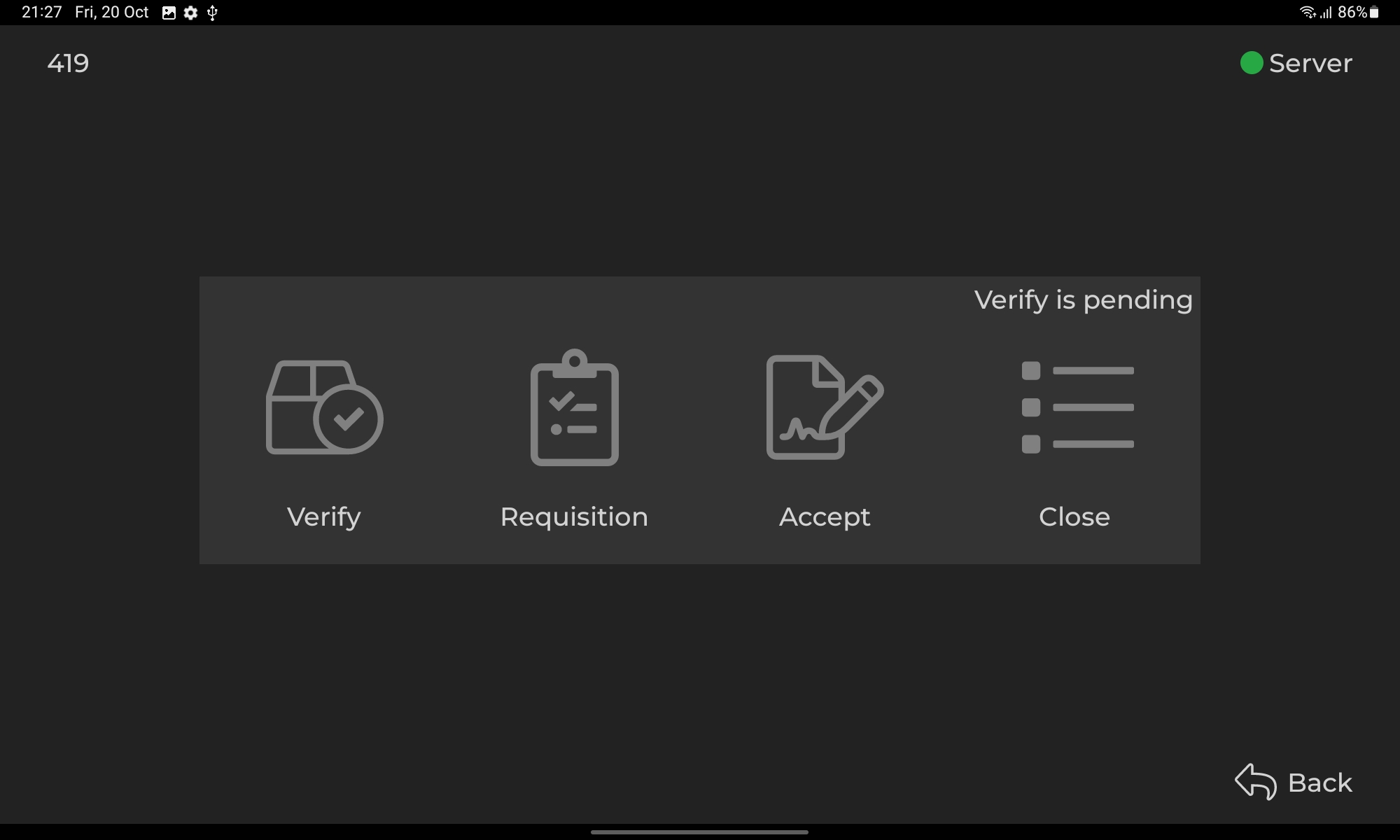
- VERIFY PENDING - Opening stock count is pending verification on the BOH
- VERIFY REJECTED - Opening or Closing stock count has been rejected on the BOH
- CLOSE IS PENDING - Close stock count is pending verification on the BOH
¶ Entering Opening Stock Counts
1: Select a unit on the stock dashboard, you will be taken to the K-Stock input screen
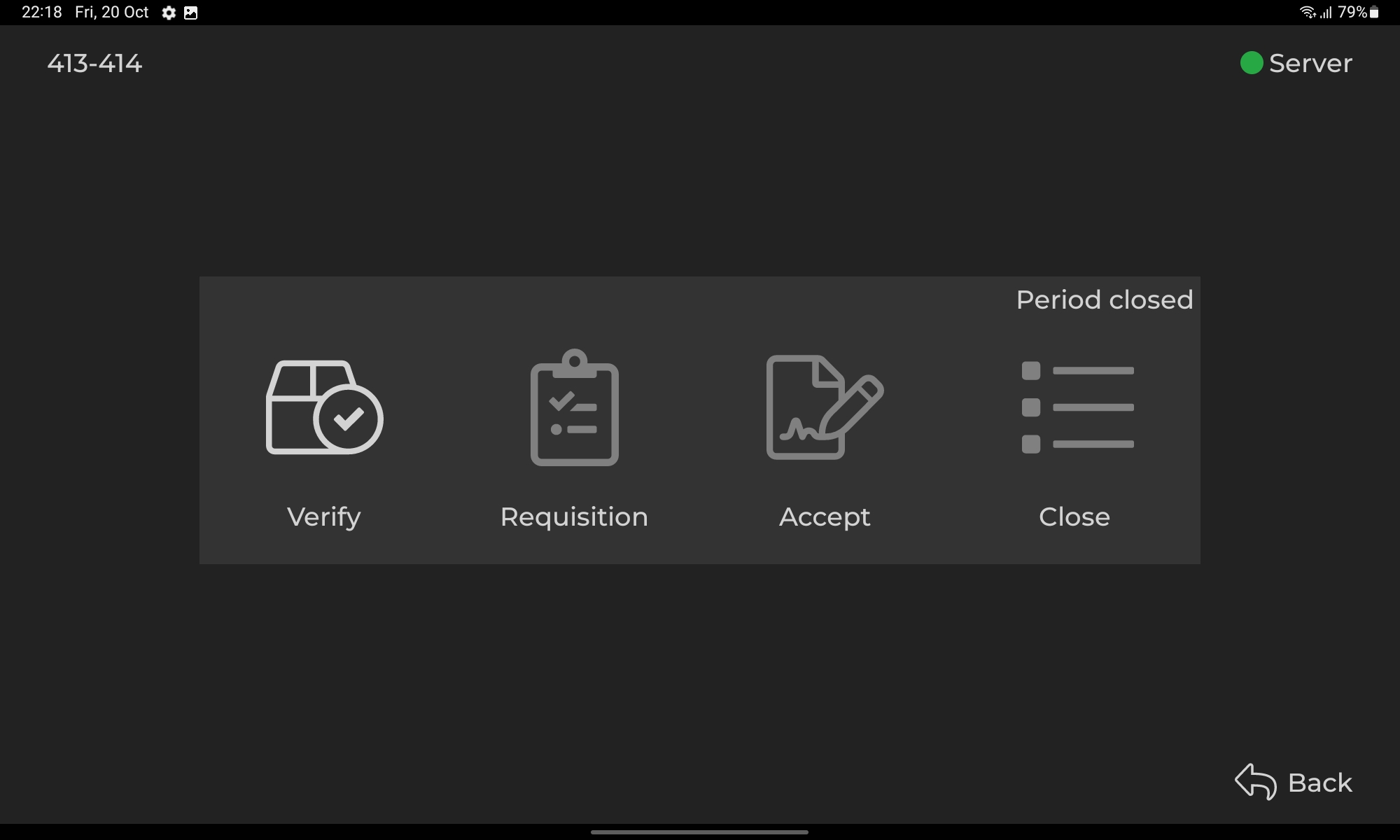
2: Select "Verify" to start inputting opening stock counts
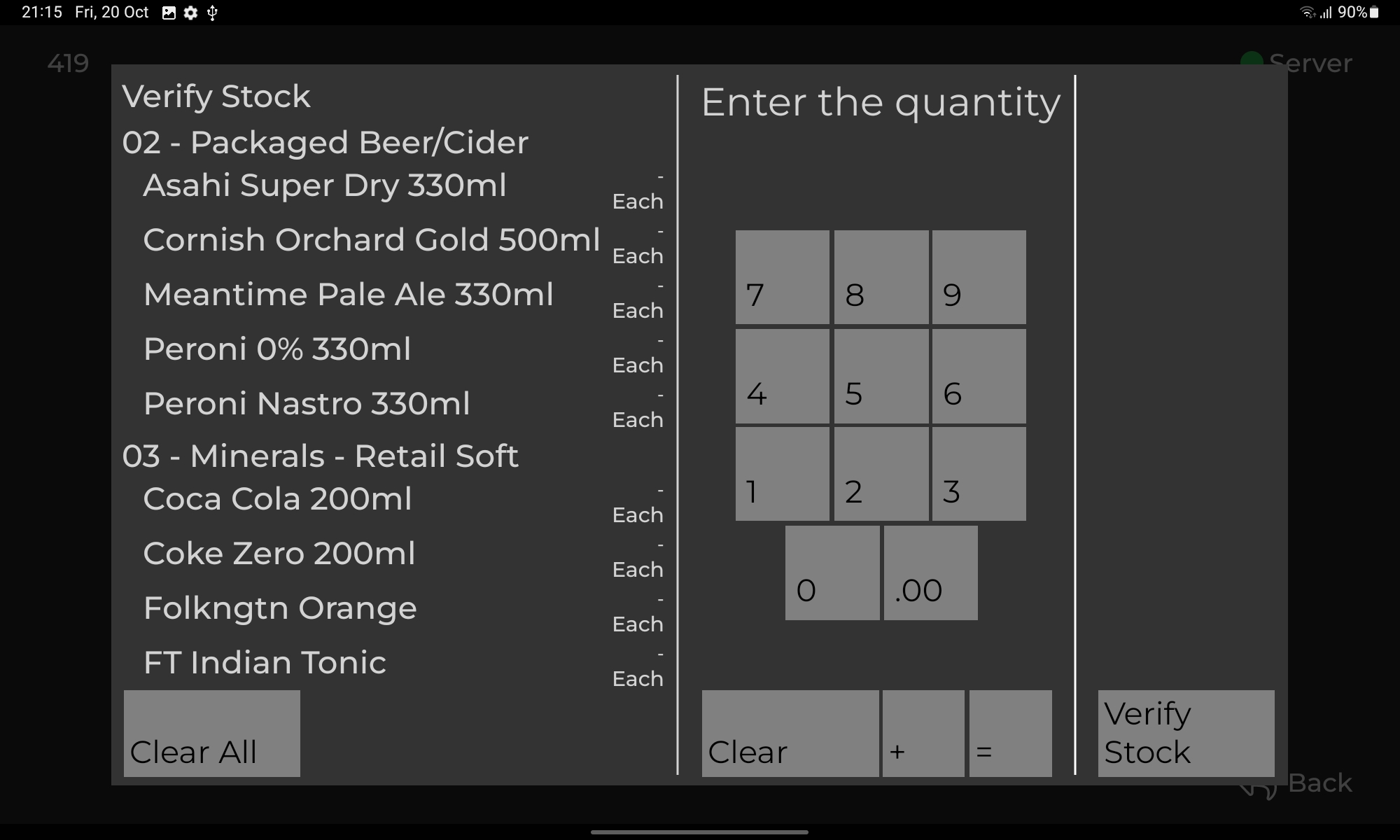
3: Use the keyboard on the right to input the value of each stock item
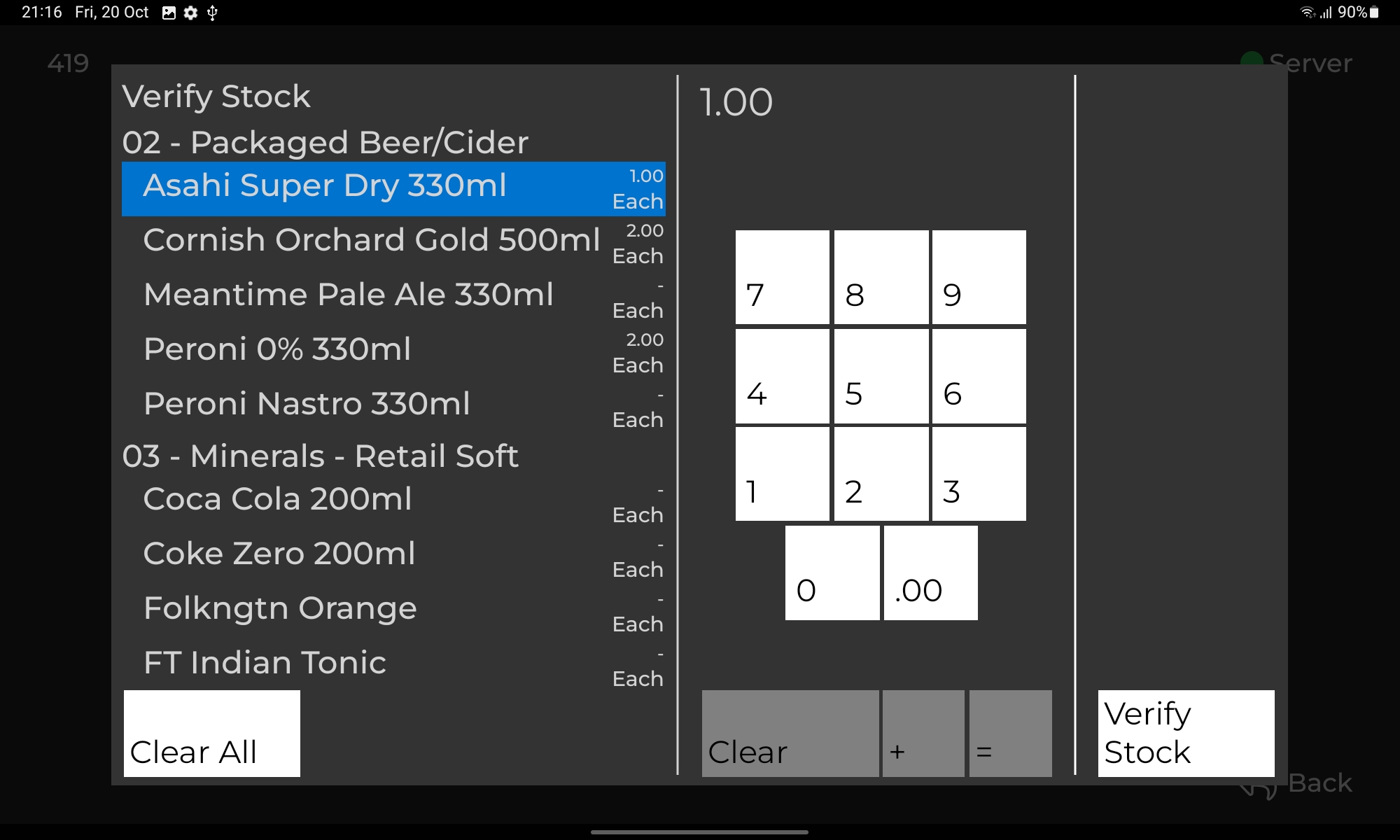
4: Once all stock counts have been inputted, select "Verify Stock" to continue
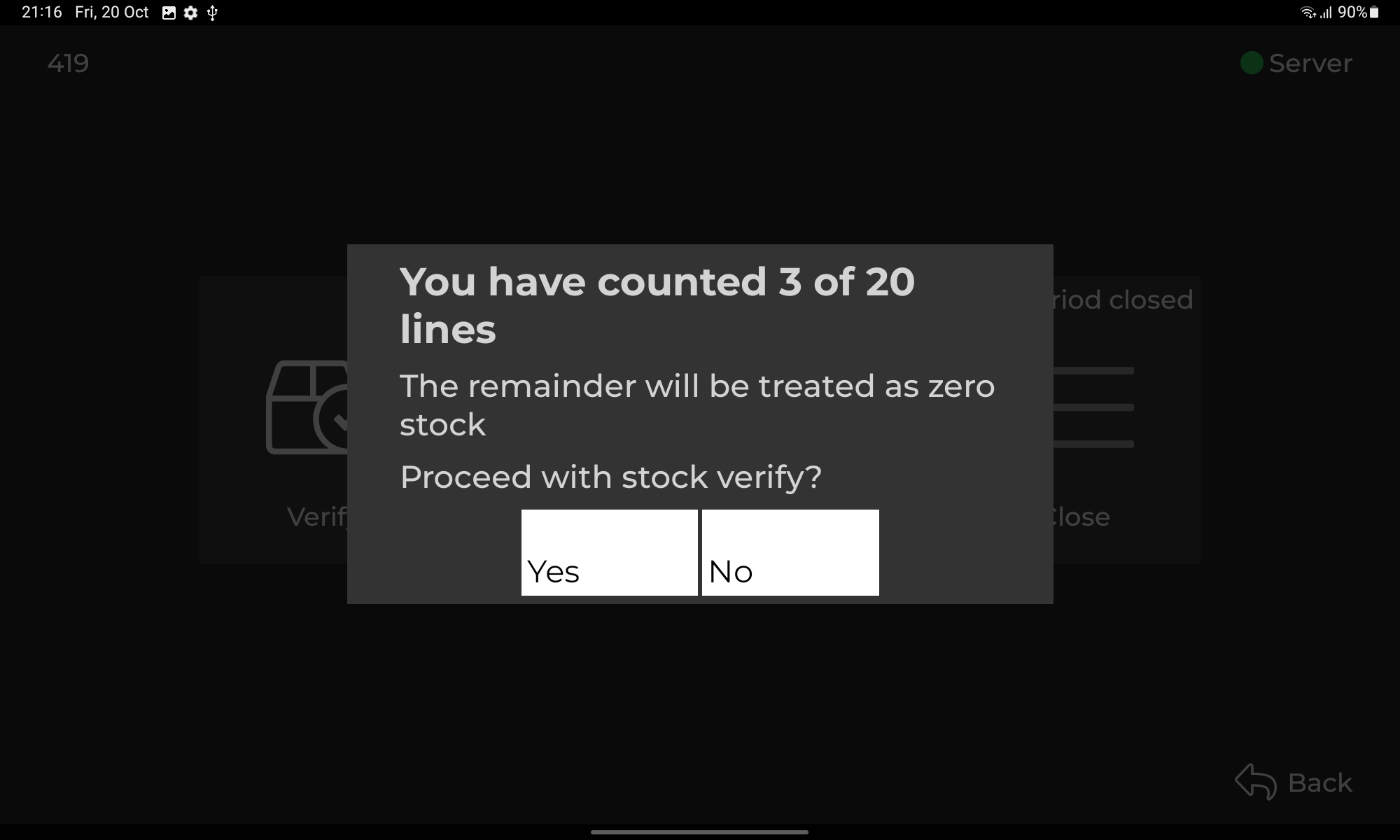
5: Once submitted the opening count requires approval from the BOH (Enterprise) to continue
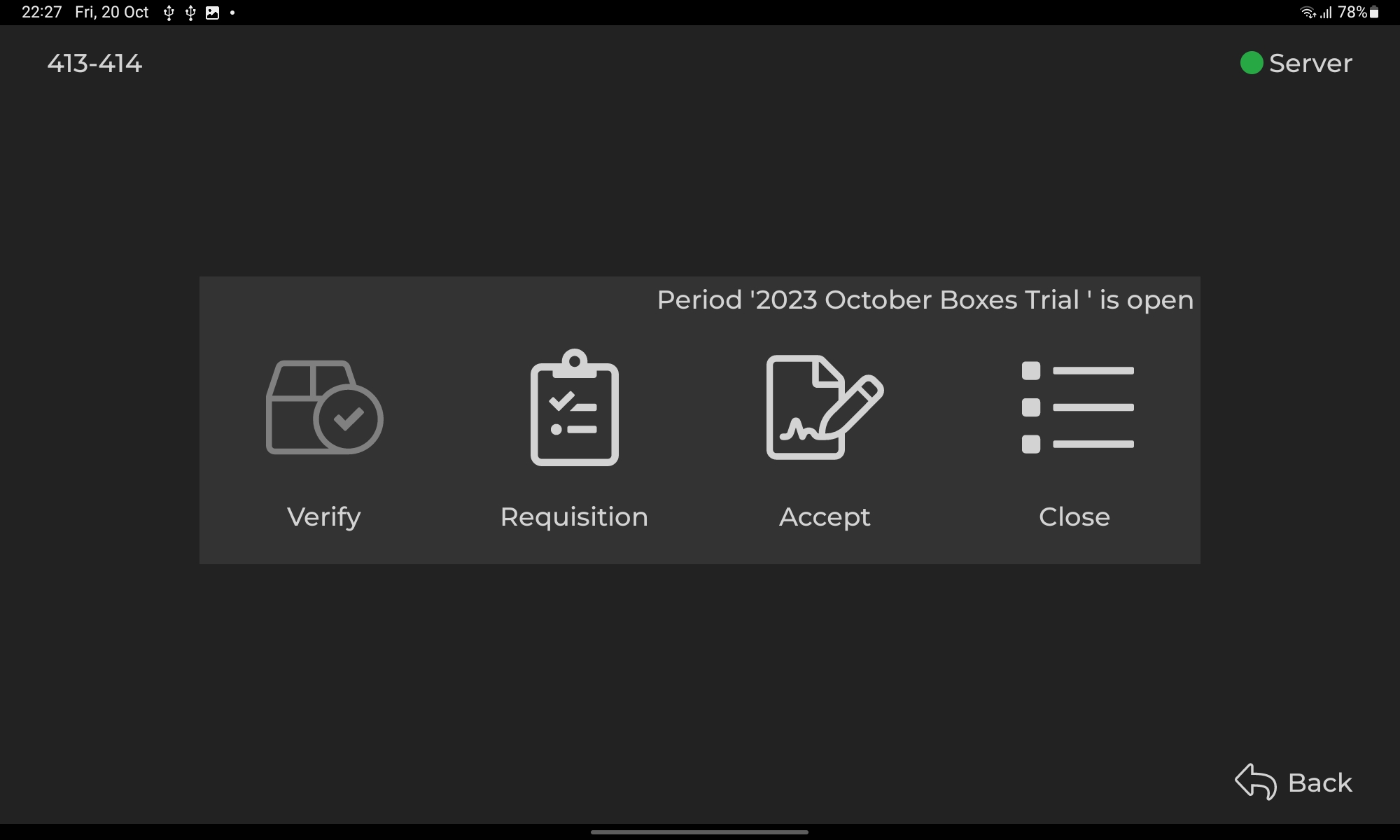
5: Once Approved the outlet K-Stock input screen will look like this
¶ Accepting Requisitions
All requisitions must be accepted before closing stock is inputted into K-Stock
1: Select "Accept" on the K-Stock input screen
2: On the left of the screen, you will find each transfer identification number. Select each one and sign for acceptance of the stock items.
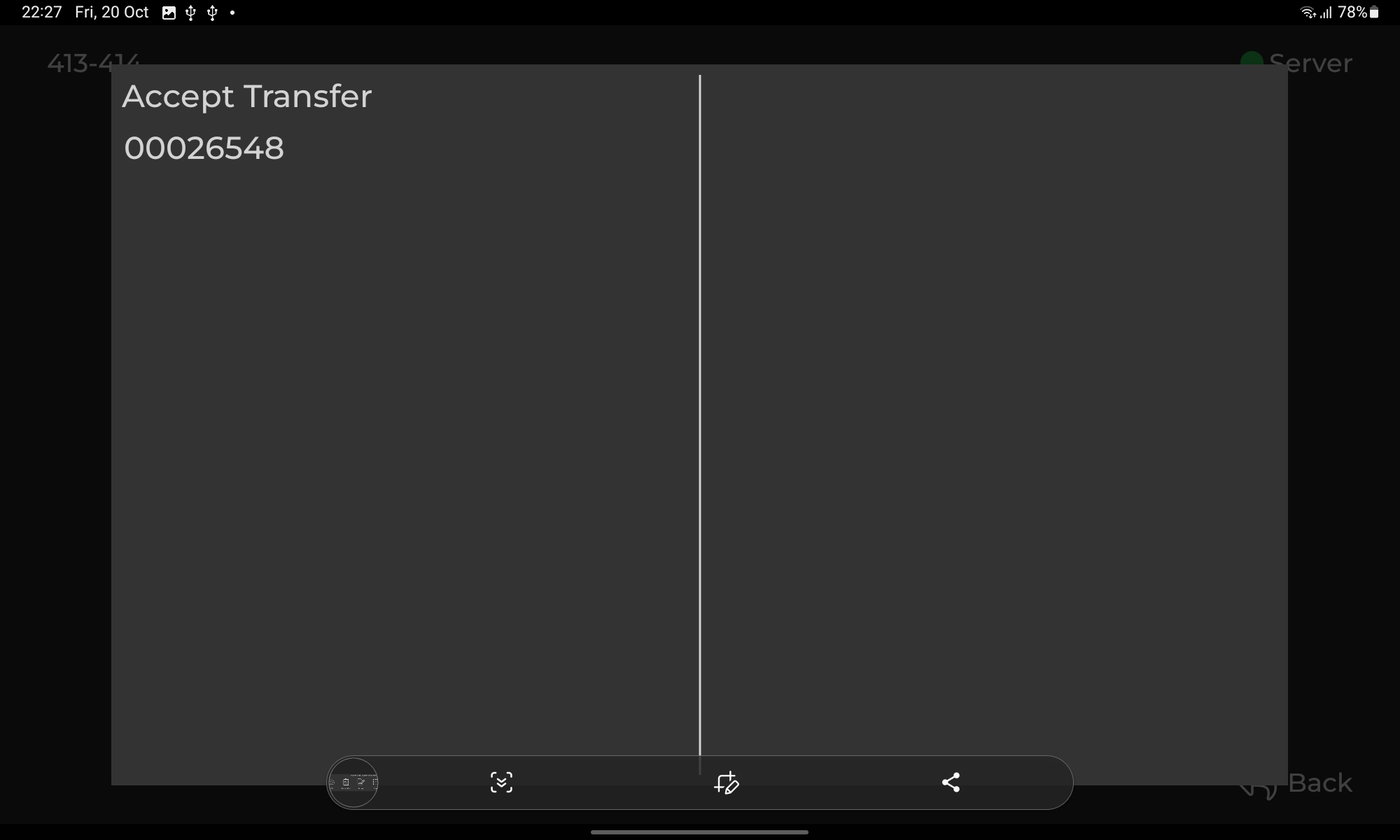
3: Selecting a transfer will display each of the products requisitioned by the outlet
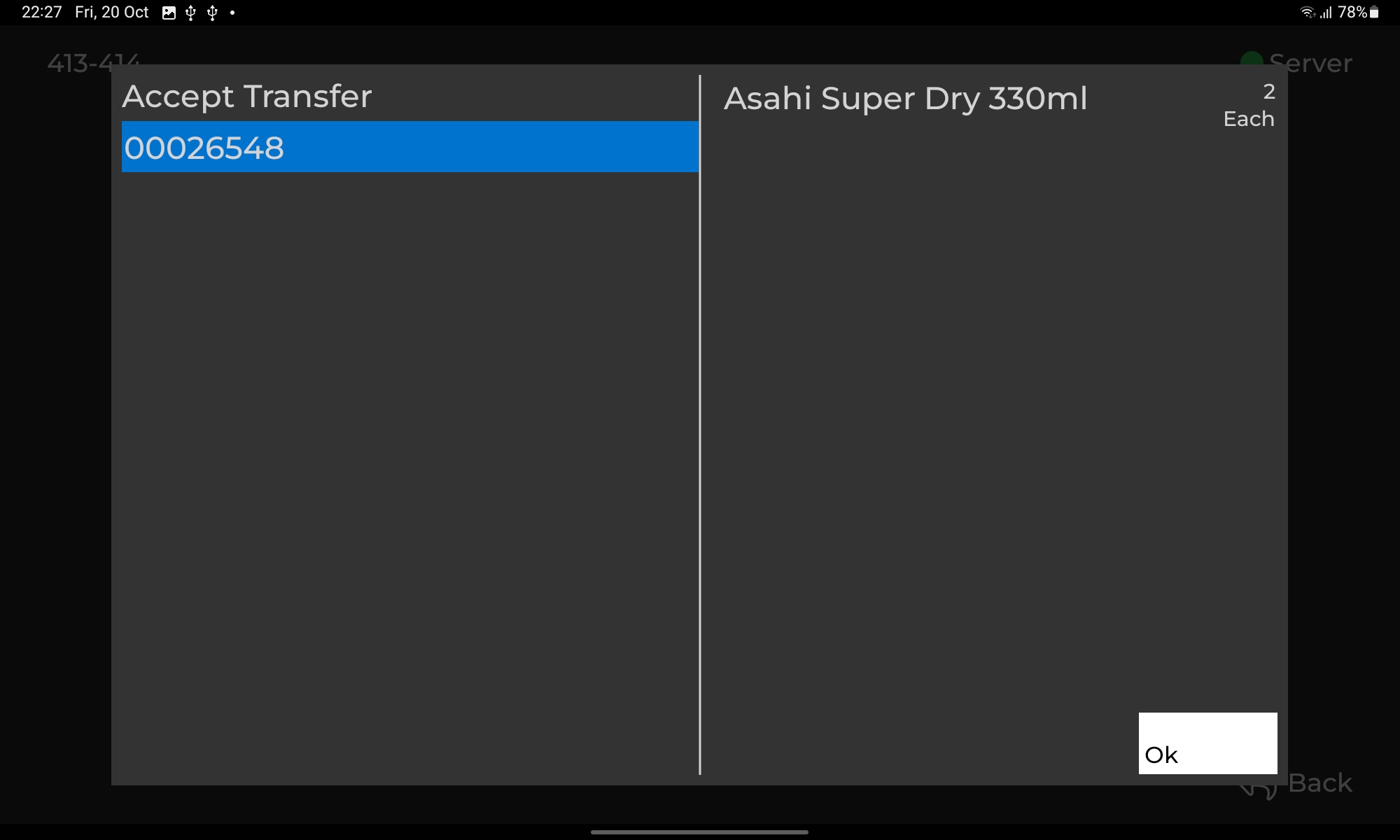
4: Select "Ok" to continue to the signature page
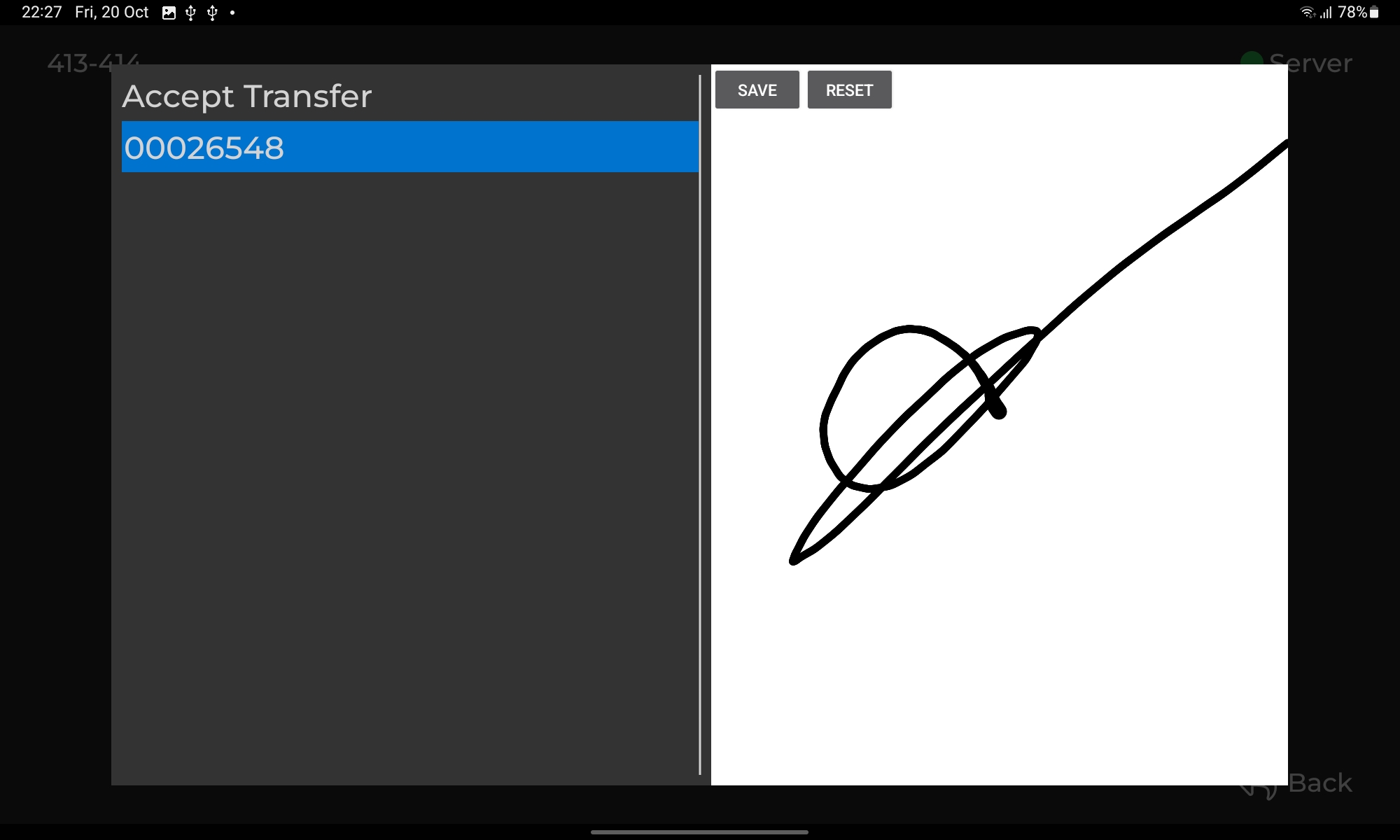
5: Put your signature in the white box and select "Save" to finalise the acceptance of stock into the outlet
¶ Entering Closing Stock Counts
All requisitions must be accepted before closing stock is inputted into K-Stock
1: Select a unit on the stock dashboard, you will be taken to the K-Stock input screen
2: Select "Close" to start inputting closing stock counts
3: Use the keyboard on the right to input the value of each stock item
4: Once all stock counts have been inputted, select "Verify Stock" to continue
5: Once submitted the opening count requires approval from the BOH (Enterprise) to continue